

TL;DR
- → A WiFi QR code lets guests connect instantly by scanning — no password required.
- → Works on all modern iPhones and Android devices with the built-in camera.
- → Generate one free in seconds with the QR Code Generator — no app, no signup.
Advertisement Space
Telling someone your WiFi password — especially one that looks like xK9#mP2$qR7! — is one of those small frictions that shouldn't exist in 2026. A WiFi QR code eliminates it entirely. Your guest scans, their phone connects. Done.
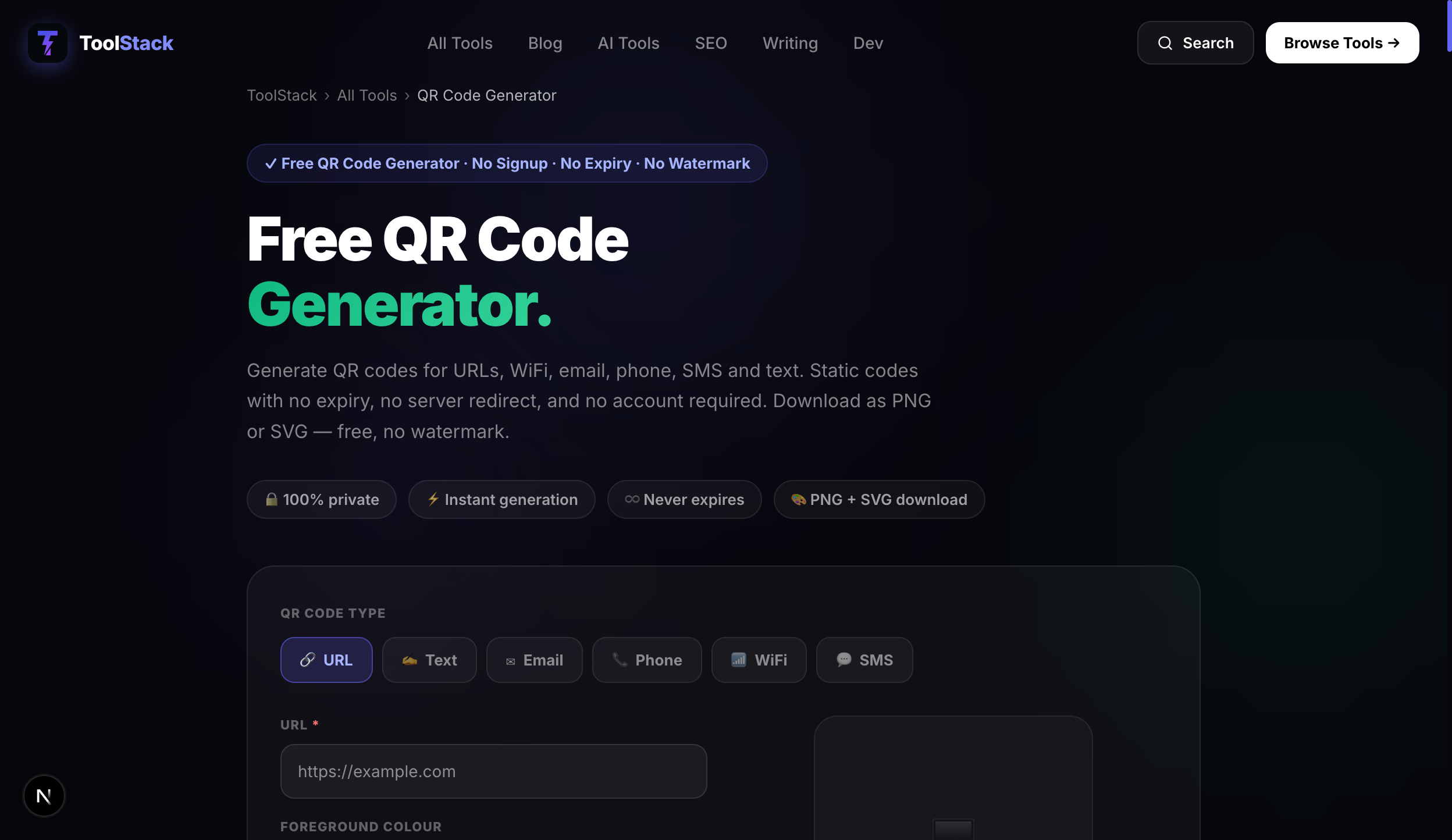
You don't need an app. You don't need to pay for anything. The ToolStack QR Code Generator has a dedicated WiFi mode — select WiFi, enter your network name and password, and download the code as a PNG or SVG.
How to Create a WiFi QR Code
- 1Open the QR Code Generator — Go to the free tool at /tools/qr-code-generator and select the WiFi tab.
- 2Enter your network details — Type your network name (SSID) exactly as it appears — capitalisation matters. Enter your WiFi password. Select your security type: WPA/WPA2 for most modern routers, WEP for older ones, or None for open networks.
- 3Generate and download — Click Generate. Download as PNG for printing or SVG for scalable/print-ready use. The QR code is created entirely in your browser — your password never leaves your device.
- 4Test it before printing — Scan the QR code with your phone camera before you print or display it. If it connects, it works. If not, double-check the SSID and password for typos.
What the QR Code Actually Contains
A WiFi QR code is just a machine-readable version of this text string:
The fields are: T (security type — WPA, WEP, or nopass), S (SSID — your network name), and P (password). Modern smartphone cameras read this format natively — iOS 11+, Android 10+, and most Android camera apps since 2019.
Where to Use It
| Location | Tip |
|---|---|
| Home / guest room | Print A6 size, place in a small frame on the desk or bedside table |
| Airbnb / rental property | Laminate it and attach to the welcome card — saves you answering messages about WiFi |
| Café or restaurant | Add to table cards or the menu — separate guest network recommended |
| Office reception | Display on the front desk — use a dedicated visitor VLAN, not your staff network |
| Events / pop-ups | Print large format on a banner or A3 sheet — visible from a distance |
Security: Should You Worry?
The QR code encodes your password in plain text. Anyone who can photograph or screenshot the code gets the password. For home use, this is fine — you control who sees it. For businesses, the answer is a dedicated guest network with its own SSID and password, rotated monthly. Display the guest QR code, never the staff network one.
The ToolStack generator runs entirely in your browser — your network name and password are never sent to any server. You can verify this by generating a QR code while offline.
Frequently Asked Questions
Is it safe to share a WiFi QR code?
It depends on who you share it with. The QR code contains your WiFi password in plain text — anyone who scans it gets the password. For a home network, it's safe to print and display for guests. For a business, use a separate guest network with its own QR code, and rotate the password regularly. Never share a QR code that contains your primary business or personal network password publicly.
Do WiFi QR codes work on iPhone?
Yes. iPhones running iOS 11 or later can scan WiFi QR codes directly with the built-in Camera app — no third-party app needed. Point the camera at the code and tap the notification that appears to connect automatically. Android devices running Android 10 or later also support this natively through the Camera or Settings app.
What is the WIFI: format in a QR code?
WiFi QR codes use a standardised plain-text format: WIFI:T:WPA;S:NetworkName;P:Password;;. T is the security type (WPA, WEP, or nopass for open networks), S is the SSID (network name), and P is the password. This format is recognised by all modern smartphone cameras. The double semicolon at the end terminates the record.
What if my network name or password contains special characters?
Special characters like commas, semicolons, backslashes, and quote marks need to be escaped with a backslash in the WIFI: format. For example, a password of pa$$;word becomes pa$$\;word. Most QR code generators handle this automatically. If you're building the string manually, check that any ;, ,, ", or \ in your SSID or password are properly escaped.
Can I print the QR code?
Yes — and you should. A printed WiFi QR code at a desk, on a menu, or by the front door is far more practical than verbally spelling out a password. Download the QR code as PNG or SVG from the generator and print at whatever size you need. SVG scales to any size without losing quality, making it ideal for print. PNG is fine for standard paper printing.